How to teach calculator skills for GCSE maths
A calculator is a tool with methods, not just a grid of buttons. Teach the skills and modes that change answers, then practise on ranging questions.
Most calculator lessons start with a tour of the keypad. Students learn where sine lives, then meet a question in radians and get an answer that makes no sense.
The buttons are the easy part. What students need is a method: which expression to enter, which mode they are in, and whether the display can be trusted. That is teachable, especially when everyone can see the same calculator.
Start with the exam rules
Before teaching calculator skills, be clear about when a calculator is allowed.
- AQA and Edexcel GCSE maths: Paper 1 is non-calculator; Papers 2 and 3 allow one.
- OCR GCSE maths: Paper 2 is non-calculator; Papers 1 and 3 allow one.
Check your own board's specification rather than a class handout. The board comparison sets out the paper structure side by side.
Two practical rules for students:
- The exam needs an approved physical calculator, not a phone or a web app.
- A calculator does not remove the need to show method. Method marks are still awarded for the algebra, not the button press.
A virtual calculator is for teaching, projection and practice. It should mirror the model students will hold in the exam, not replace it.
Teach five skills before modes
1. Order of operations and brackets
The calculator follows the order of operations, so the expression must say what you mean.
3 + 4 × 5gives 23.(3 + 4) × 5gives 35.
Ask students to say the expression aloud before typing it. A fraction bar acts as a bracket too: everything above the line is divided by everything below it.
2. Negative numbers and powers
This is where display conventions cause errors.
(-3)²is 9.-3²is -9.
Make students type the brackets and look at the display before pressing equals. The same applies to roots and to negative exponents.
3. Fractions and exact display
Fraction questions reward exact answers. Teach the fraction key rather than 3 ÷ 4, and show the toggle between fraction and decimal.
- Enter mixed numbers with the mixed-number key, not as an implied addition.
- Leave the answer as a fraction when the question asks for one.
- Convert to a decimal only when the question asks for a decimal or a rounded value.
4. Trigonometry and angle mode
Angle mode is the most expensive setting in GCSE maths.
- In degree mode,
sin 30is 0.5. - In radian mode, it is not.
Students should check the D or R indicator before every trigonometry question, and again after using inverse functions. If an answer looks impossible, check the mode before assuming the method is wrong.
5. Ans, memory and rounding
Long questions often need several steps.
- Use
Ansto carry a result into the next calculation without retyping it. - Use memory only when a value is needed repeatedly; otherwise it becomes another thing to clear.
- Round at the end, not at each step. Early rounding is a common source of small, avoidable errors.
Teach the modes, not just the keys
Every scientific calculator has a menu of apps. The exact list depends on the model: a Casio fx-991CW has thirteen, an fx-991EX has twelve, and a Sharp EL-W531TH has four.
| Mode | What it does | GCSE use | Teaching note |
|---|---|---|---|
| Calculate | Arithmetic | Most questions | Home base; check the display tag |
| Statistics | Data lists, frequency, mean, SD | Averages, scatter graphs | Clear data before the next question |
| Table | Generates f(x) values | Graphs, sequences | Still draw and label the graph |
| Equation | Simultaneous and quadratic solver | Checking an answer | No method marks for the solver |
| Ratio | Shares an amount in a ratio | Ratio questions | A check, not a bar-model replacement |
| Distribution, Complex, Matrix, Vector, Base-N | A-level and beyond | Not needed at GCSE | Show students how to return to Calculate |
Two mode habits matter more than the full list:
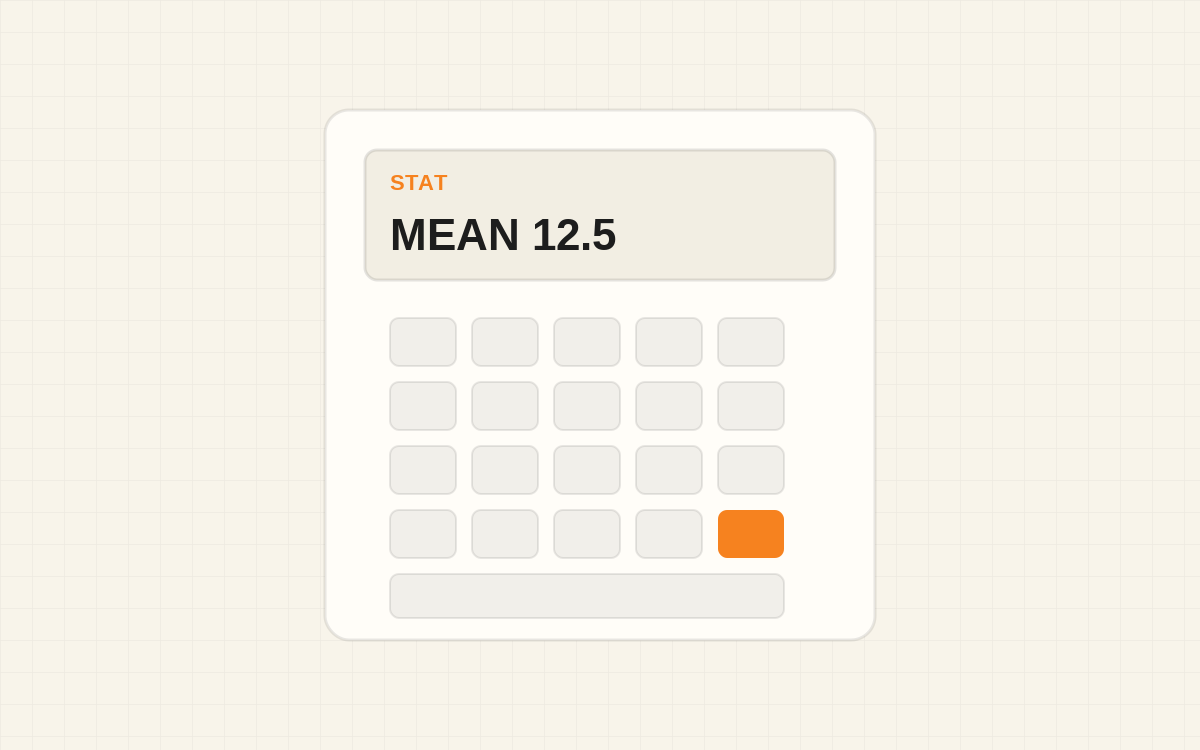
- Read the mode tag. The display shows
STAT,TABLE,EQNand similar labels. Students should glance at it before trusting a result. - Clear data between questions. Statistics data stays until it is cleared. A mean left over from the previous question is a silent error.
Model menus are not identical. A class set of Casio fx-991CW calculators does not match a Sharp EL-W531TH menu. If you project a virtual calculator, choose the same model the class uses, or teach the menu by name rather than by position.
Show students around the mode menu
Once students can enter a basic calculation, show them that the calculator is more than one screen. Treat it as an orientation activity, not a race to master every app.
- Open the mode menu and find Calculate, Statistics, Table and Equation.
- Enter Statistics, note the
STATtag, and return to Calculate. - Enter Table, generate a few values, and return.
- Enter Equation, solve a simple quadratic, then return and solve it by factorising.
- Clear the data and confirm the calculator is back in Calculate mode.
The point is not to master every app. It is to make the menu familiar enough that students are not lost when a question needs it.
Lesson ideas to choose from
These are separate lesson ideas, not a fixed sequence. Pick the ones that match the gaps you see. A class that is confident with brackets may only need the modes and exam-style lessons.
| Lesson idea | Focus | Exit check |
|---|---|---|
| Display and order of operations | Brackets and expression entry | Five expressions typed correctly without help |
| Negatives and exact values | Powers, roots and fractions | Three questions answered in exact form |
| Trigonometry and angle mode | Degree and radian settings | One side and one angle, with mode checked |
| Modes in use | Statistics, table and equation apps | Mean from a frequency table; table of values; solved quadratic checked by factorising |
| Exam-style calculator section | Exam-style practice and marking | Section completed, marked, one error logged |
Use one idea at a time and end with a check that students can do the skill without prompts. The order matters less than whether they can explain both the expression and the display.
Common errors and fixes
| Error | What it looks like | Fix |
|---|---|---|
| Missing brackets | Wrong sign or wrong order | Say the expression aloud, then bracket it |
| Radian mode | Trig answer is implausible | Check D or R; reset to degrees |
| Early rounding | Final answer off by a small amount | Keep exact values until the last step |
| Stale statistics data | Mean does not match the table | Clear data before entering a new list |
| Fraction key misuse | Mixed number read as a product | Use the fraction template, not two separate numbers |
| Misread display | Exponent or fraction line missed | Use history to reread the entry, not just the result |
Use the virtual calculator in class
The free scientific calculator runs the same layouts as the Casio fx-991CW, fx-991EX, TI-30X Pro MathPrint and Sharp EL-W531TH.
- Project it. Everyone sees the same key positions while you model an expression.
- Pick the class model. The menu and key labels then match the hardware.
- Use it for homework. Students without a calculator at home can still practise the method.
- Use the keyboard. Typing expressions is faster than clicking, and the history makes it easy to revisit a step.
- Practise the modes. Statistics, table, equation, ratio and the other apps are available for the supported models, so the mode activity can be done on screen.
It is still a teaching tool. The exam requires an approved physical calculator, and students should be comfortable with the one they will actually use.
Check understanding, not button memory
A short calculator-only quiz tells you more than a keypad worksheet.
- Give five questions where the expression must be entered correctly, not just answered.
- Ask students to explain what the display means before they write the answer.
- Include one question where the calculator gives a correct result but the method still needs writing out.
- Log one error per student and revisit it three days later.
For the routine around that, see keep a maths error log.
If you are a parent or tutor
You do not need to know every function. Focus on four habits:
- Check the mode before trigonometry.
- Use brackets when the expression is not obvious.
- Keep fractions exact until the question asks otherwise.
- Write the method, even when the calculator gives the answer.
Then let the student type. Watching someone else press the keys does not build the skill.
Sources
- AQA, GCSE Mathematics 8300 specification, including paper structure and calculator rules.
- Pearson Edexcel, GCSE Mathematics 1MA1 specification.
- OCR, GCSE Mathematics J560 specification at a glance.
Checked 17 November 2026.
Practise this now
Put the advice to work with free questions, worked answers and adjustable difficulty.